Laptop To MORA Desk Test
Run the simulated aircraft on the laptop and real USHER on MORA. The FTDI cable supplies 5 V power and carries camera requests/replies over a 3.3 V UART. Start with a mock photo on the board, then use the real camera.
PC demo setup | Prepare the reference Pi board
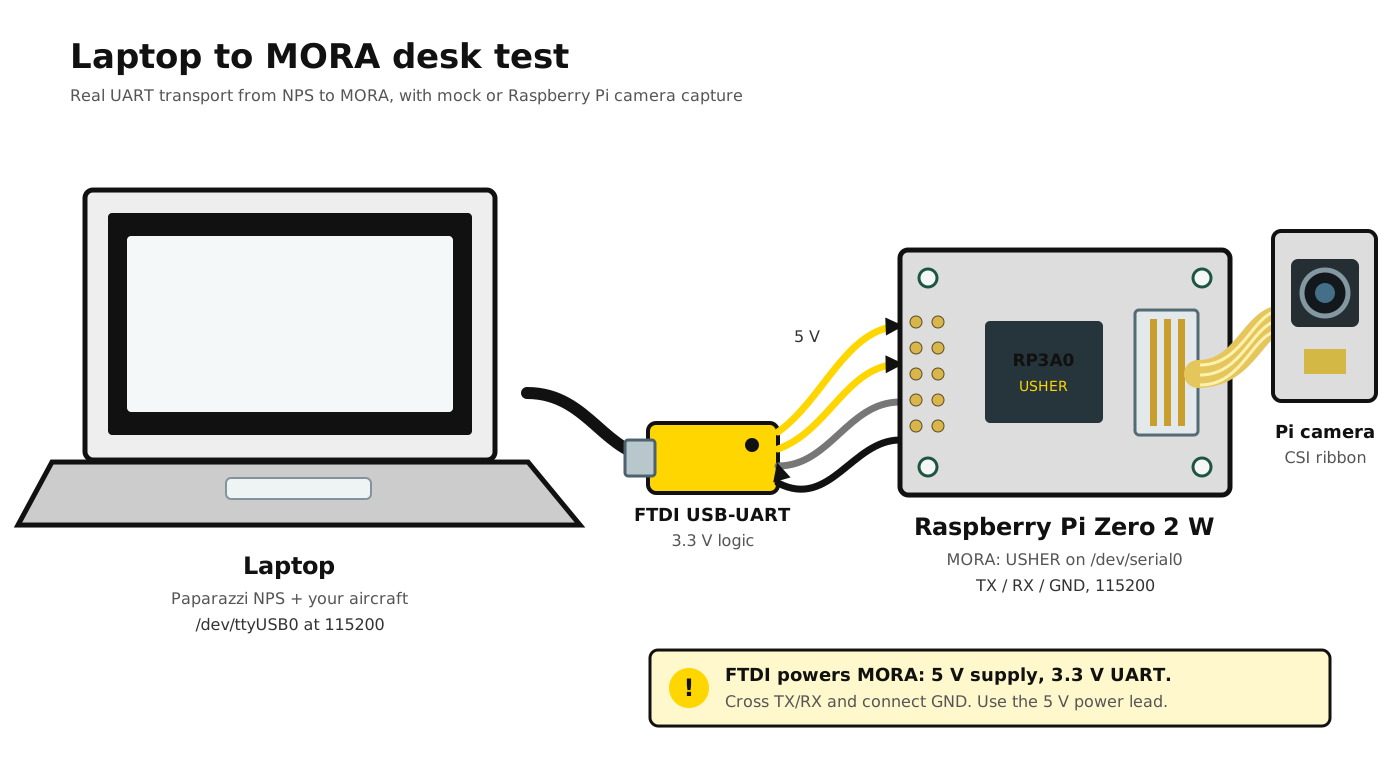
1. Connect Power And UART
Make connections while unpowered. Use the cable's 5 V power lead and 3.3 V UART signals; those voltages have different jobs.
| FTDI Lead | Pi Zero 2 W Reference Pin And Purpose |
|---|---|
| 5 V | Pin 2, 5 V; power MORA and its camera |
| GND | Pin 6, GND; common ground |
| TXD | Pin 10, GPIO15 / RXD; laptop sends to MORA |
| RXD | Pin 8, GPIO14 / TXD; MORA replies to laptop |
Check connector labels, not assumed wire colours—adapter makers treat wire colours as creative expression, and feeding 5 V into a 3.3 V GPIO pin ends the bench test faster than intended. Never connect the 5 V lead to TXD/RXD or the Pi's 3.3 V pin. Connect the camera ribbon while MORA is off, then plug the FTDI cable into the laptop. Keep a real flight controller disconnected for this simulated-aircraft exercise.
MORA needs the installed release, matching sensor runtime and configured UART. Both ends use 115200 baud. Wi-Fi/SSH starts programs and retrieves files; the FTDI UART carries the camera protocol, not an SSH login.
2. Choose The Laptop Port
On the laptop:
Use your adapter's stable by-id path, or its actual device such as
/dev/ttyUSB0. The laptop account needs serial access, normally through
dialout on Debian/Ubuntu.
Stop the previous local session. The example launcher automatically prefers
a connected MORA cable and skips local sensor companions. Hardware sessions
pin both NPS endpoints to that cable; startup refuses a leftover
/tmp/usher-sim instead of silently testing the PC. Do not run a serial
monitor on the FTDI port.
3. Prepare NPS For The Cable
Use your working fixed-wing NPS aircraft and the public setup. From the Sensoraia root:
export PAPARAZZI_HOME="$HOME/paparazzi"
./kickstart.sh
make -C "$PAPARAZZI_HOME" -f Makefile.ac AIRCRAFT=Easystar_3_SPOTTERCAM nps.compile
By default, the nps transport uses /dev/ttyUSB0 whenever no local PC
/tmp/usher-sim peer is running. If several USB-serial adapters are attached,
pass MORA_UART_DEVICE=/dev/serial/by-id/usb-FTDI_... via
DIGITAL_CAM_UART_FALLBACK_DEVICE="$MORA_UART_DEVICE" on the make command
above (after removing var/aircrafts/Easystar_3_SPOTTERCAM/nps/modules/digital_cam/uart_cam_ctrl.o).
This photo-survey plan requests the AI camera slot; USHER on MORA selects
whether to capture a mock or physical image.
Start Paparazzi Center:
Select userconf/SENSORAIA/sensoraia_demo_conf.xml, aircraft
Easystar_3_SPOTTERCAM (or your own configured aircraft) and nps (click
Build if you have not built nps yet).
Choose userconf/SENSORAIA/sensoraia_demo_control_panel.xml and
Sensoraia MORA desk NPS. This
session starts Simulator, Data Link, Server and PprzGCS, with no local
sensor peer, so nps connects straight to MORA over the FTDI cable.
4. Check Real UART With A Mock Photo
In another laptop terminal, connect to MORA over SSH and run foreground USHER
against /dev/serial0:
ssh -t air@theatre.local 'sudo systemctl stop usher.service && cd /home/air/sensoraia && ./usher --serial /dev/serial0 --aicam --test --debug; status=$?; sudo systemctl start usher.service; exit $status'
Substitute your MORA SSH target (air@theatre.local) and installation path
(/home/air/sensoraia). The command stops the managed service, runs foreground
USHER over SSH and restores usher.service after the foreground command ends.
If you prefer running each step interactively in an SSH terminal on MORA:
sudo systemctl stop usher.service
cd /home/air/sensoraia
./usher --serial /dev/serial0 --aicam --test --debug
Use your actual installation path. End foreground USHER with Ctrl+C when
finished, then run sudo systemctl start usher.service. Do not leave the
managed service and foreground program competing for the UART or camera.
Optional: Full Hands-Free Automation With /home/air/pass.txt
If you want completely hands-free deployment (make mora-deploy) and SSH desk
testing with zero password typing, you can place your MORA
account's sudo password in /home/air/pass.txt on MORA (replacing
replacewithyourpass with your actual password) and lock its permissions to
owner-only (chmod 600):
ssh air@theatre.local 'umask 077 && printf "%s\n" "replacewithyourpass" > ~/pass.txt && chmod 600 ~/pass.txt'
Edit ~/pass.txt on MORA so it contains your real sudo password (the literal
placeholder replacewithyourpass is safely ignored until you change it).
deploy_mora.sh automatically detects ~/pass.txt on MORA and authenticates
sudo without prompting. You can also
start and restore foreground bench runs directly from your PC in one line:
ssh air@theatre.local 'sudo -S -p "" systemctl stop usher.service < /home/air/pass.txt && cd /home/air/sensoraia && exec ./usher --chdk --debug'
After the foreground process exits, restore the managed service:
Wait for USHER to report /dev/serial0 and readiness. Start the Center desk
session, wait for live telemetry/GPS, then select Takeoff. Watch requests
arrive on MORA and mock JPEGs complete during the survey. Do not use
--local on MORA: the physical UART is the point of this step.
5. Change To The Physical Camera
Stop the desk session and end foreground USHER with Ctrl+C before changing the backend. With the AI Camera prepared:
ssh -t air@theatre.local 'sudo systemctl stop usher.service && cd /home/air/sensoraia && ./usher --serial /dev/serial0 --aicam --debug; status=$?; sudo systemctl start usher.service; exit $status'
Repeat the desk flight. Without --test, this uses actual camera exposures.
Other sensors need their corresponding camera mask and mission selection,
not just a different backend flag.
The desk session checks UART/capture operation. It does not run the PC T1..T5 ranking companion. Physical pixels paired with simulated pose do not measure real-flight geolocation accuracy.
Inspect Results And Finish
For the default account, in another laptop terminal:
Use the actual output directory printed by USHER. The files are on MORA, not in a PC companion's run directory. Check the new readable JPEG, completion diagnostic and EXIF; a GCS shot marker alone does not prove capture finished.
Let NPS land, stop its session programs and end foreground USHER with Ctrl+C.
Check that usher.service is active again. To return to PC-only simulation,
disconnect the cable, unset any explicit MORA_UART_DEVICE override, and
restart the normal session. An explicitly empty MORA_UART_DEVICE can force
PC-only operation while the cable remains connected.
If Nothing Arrives
Check crossed TX/RX, common ground, serial permissions, the actual laptop device and MORA's disabled serial login console. Check that no local peer is taking precedence and no second application owns a UART. If requests arrive but capture fails, investigate the sensor error rather than rewiring a working link.